App Connectivity
First, we’ll need to establish the connection between your ServiceNow Instance and the IoT Cloud infrastructure.
In order for the Bolt Data Connect ServiceNow App to communicate with the IoT infrastructure, we need to authorize the ServiceNow Instance to access the IoT Cloud, and we need authorize the IoT Cloud to access Salesforce.
Authorize the ServiceNow Instance to access the IoT Cloud
- First, your Bolt Data Connect support representative should provide you with an API Token, an Access Key, and a Secret Key. Keep this information safe. It’s essentially your username and password to your IoT Cloud.
Let us know
Should you ever learn or suspect these Keys have been compromised, please notify your Bolt Data Connect representative.- From the ServiceNow All Menu -> Bolt Data Connect -> IoT Setup module, select Settings.
- In the Instance-Specific API Token field enter the API Token you received in Step 1.
- Select the IoT Cloud link next to Credential Alias.
- Select the credential that shows up in the related list towards the bottom of the page.
- In the AWS Access Key ID field, enter the Access Key received in Step 1.
- In the AWS Secret Access Key field, enter the Secret Key received in Step 1.
- You shouldn’t need to modify any other settings here. Click Update and close the tab (if it opened in a new tab).
Authorize the IoT Cloud to access your ServiceNow Instance
In order for the IoT Cloud to send Alerts to your ServiceNow Instance, you must Authorize the app to access the ServiceNow APIs associated with your instance.
- From the ServiceNow All Menu -> Bolt Data Connect -> IoT Setup module, select Settings.
- Below the Connected Application label, select Authorize.
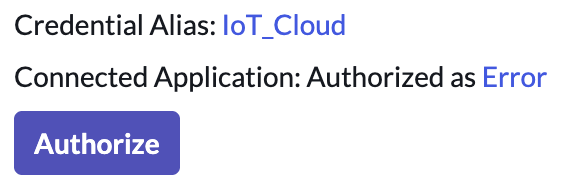
Authorize the Connected Application
- You’ll be redirected to a ServiceNow Authorization_ screen. Select Allow.
Heads Up
Verify the URL in this window is accurate. You must be logged in as a User of the Instance in which you wish to authorize the IoT Cloud integrations (this is the User the IoT Cloud will use to send Alerts and trigger platform events). If you need to switch to another User, you can select the “Not you?” link to be redirected to your Instance’s login page to log-in and authorize as a different User within your Instance.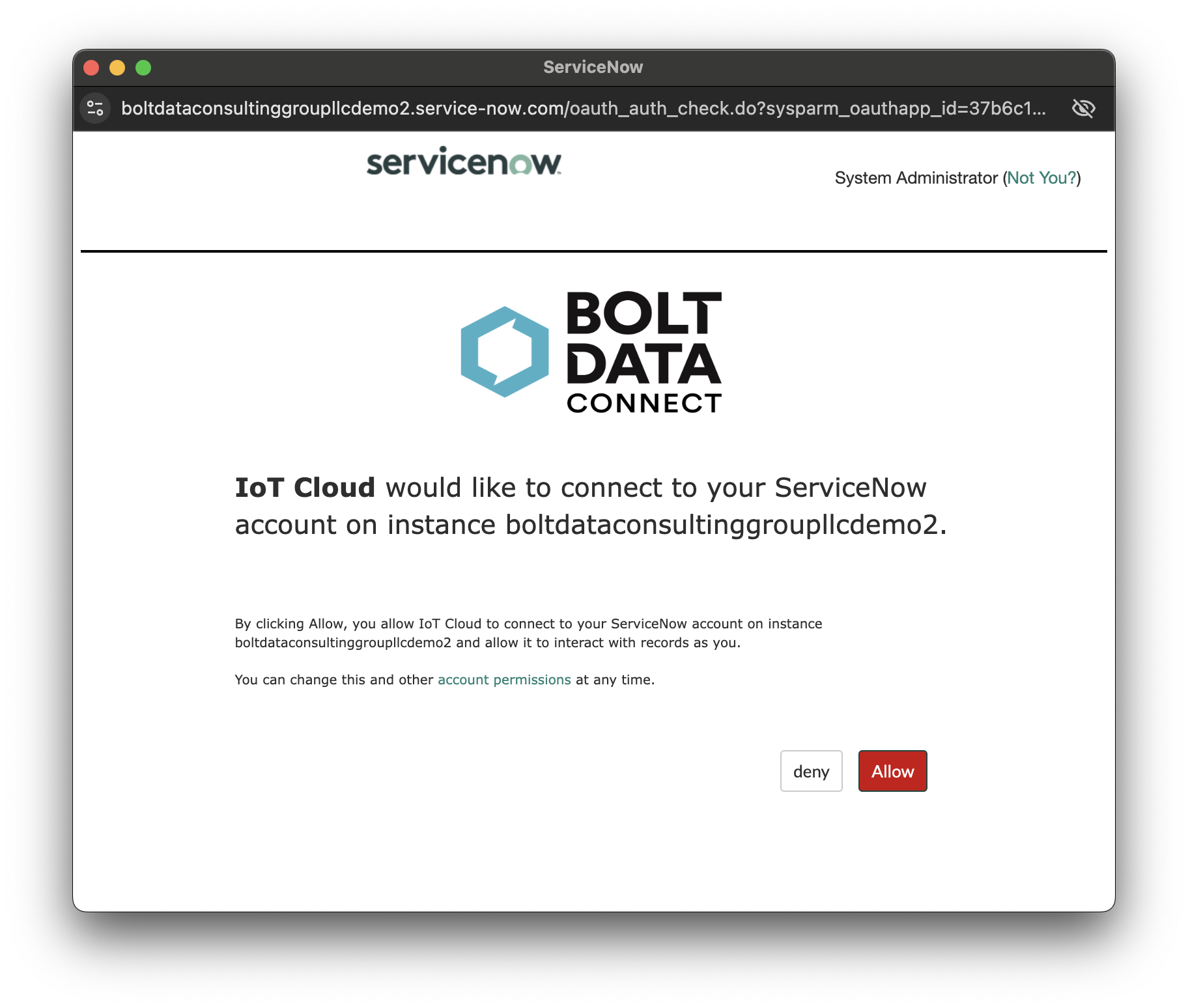
Allow the IoT Cloud to access your Org
- After selecting Allow, refresh the page. The status of the authorization will be displayed.
- When successful, the authorization status message window will close automatically (or you can close it manually if you chose). In the unlikely event you encounter an error during authorization, please let us know as soon as practical!
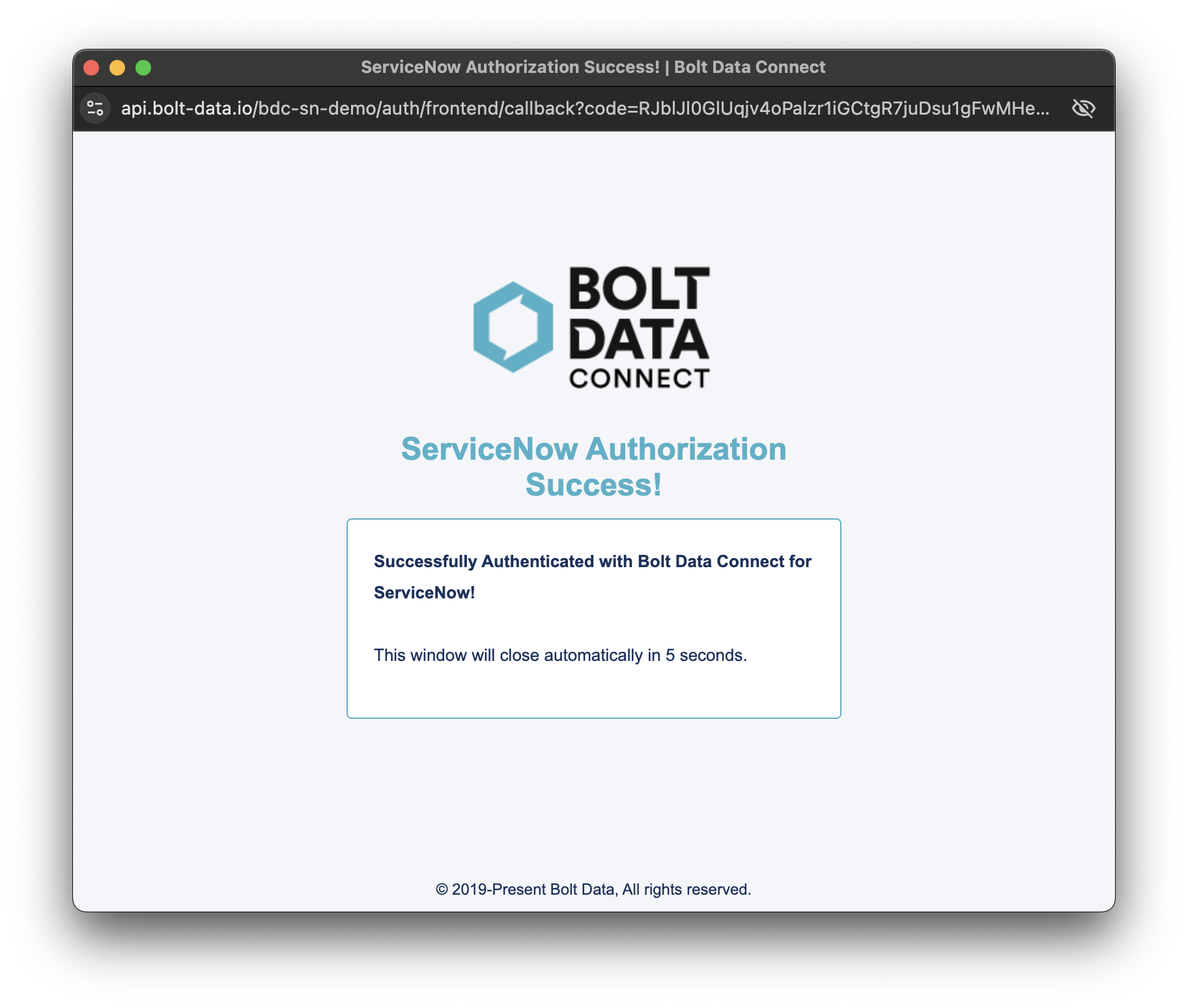
Authorization success message
Note
Bolt Data Connect does not collect any data from you or your Instance; this authorization only provides the IoT Cloud with the ability to send alerts to your Instance. The IoT Cloud is never given your login credentials.-
That’s it! This should only be required once, but should you ever need to re-establish this authorization, you can repeat these steps at any time.
-
To revoke authorization at any time, you can follow these steps:
- Select All (ServiceNow All Modules)
- Search for
System OAuthand selectManage Tokens. - You should find up to three tokens with the name
IoT Cloud. You can either delete these records or select them and clickRevoke Access. - You can re-authorize the IoT Cloud at any time by following the steps above.
-
You can check which ServiceNow User is currently authorized by the IoT Cloud at any time.
- Navigate to the Settings module found under All -> Bolt Data Connect -> IoT Setup -> Settings.
- The User should be displayed next to the Connected Application label:
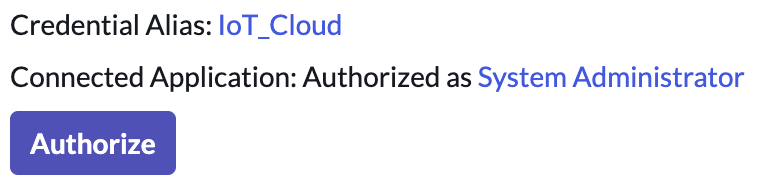
Authorization check