Auto Registration
The Auto-Registration settings focus on how the IoT Registration records are processed.
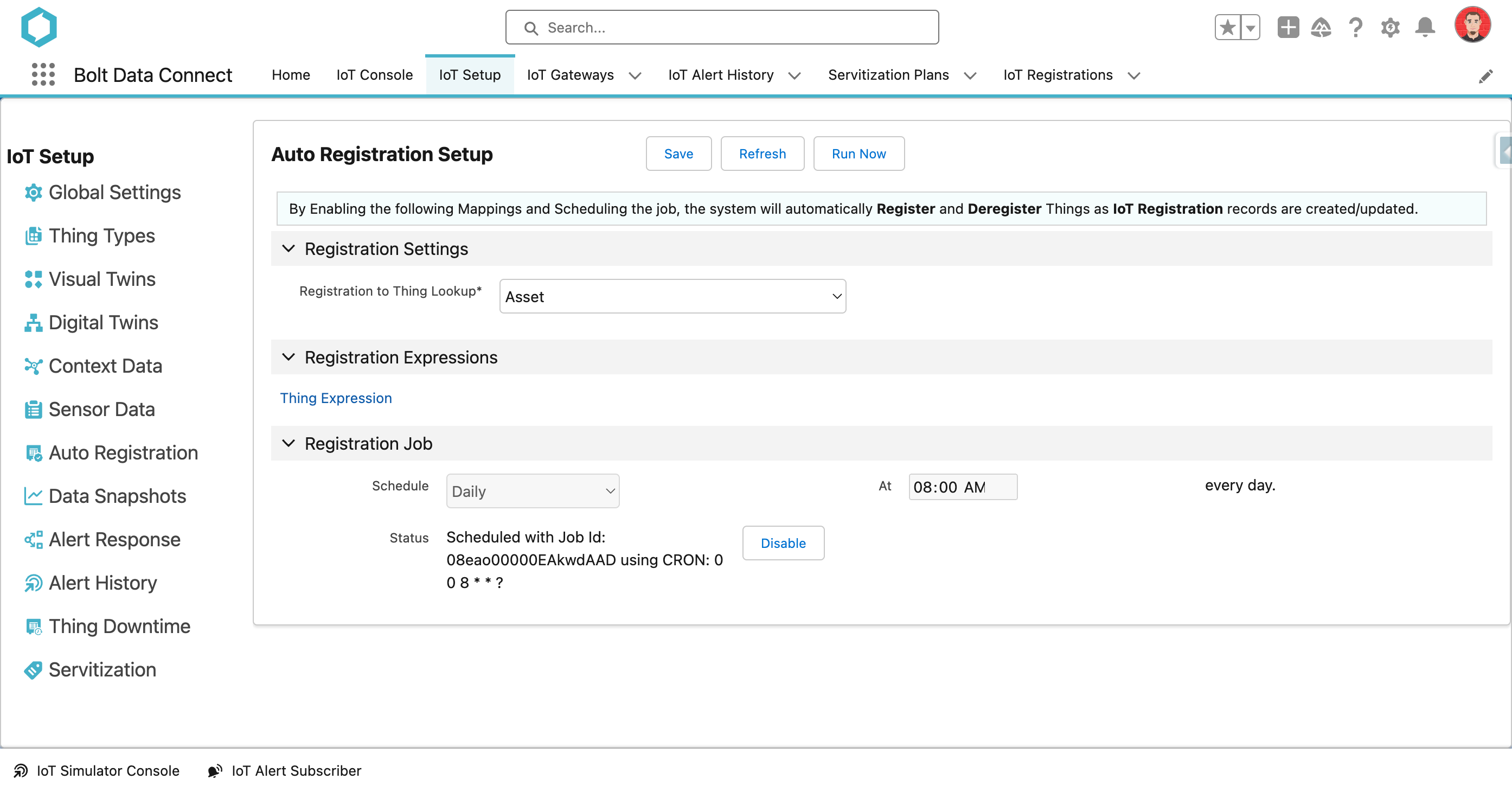
Auto-Registration Setup
Registration Settings
- Registration to Thing Lookup
- The field on the IoT Registration object to hold the Lookup to the related Thing Object.
Registration Expressions
- Thing Expression
- The expression used to find/lookup the corresponding Thing/Asset record
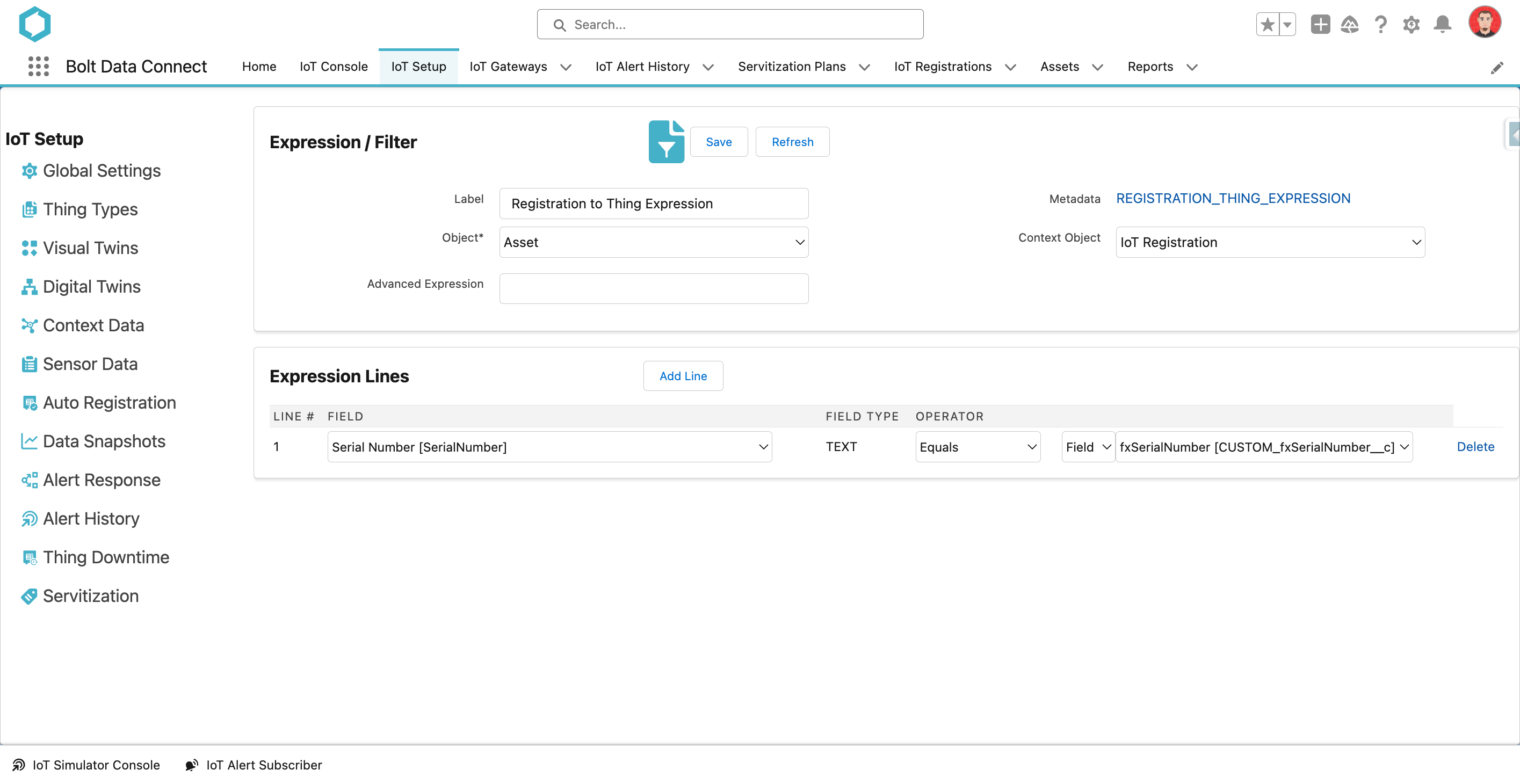
Thing Expression
This expression will be used by the Auto-Registration job to lookup the Thing record. Match fields from the Thing/Asset to the IoT Registration record. If necessary, custom formula fields or other automated fields can be added to either object and configured here.
Registration Job
The schedule for the Registration Job is managed in the lower section of the page.
- If an existing schedule has already been configured, select Disable prior to configuring a new schedule.
- In the Schedule drop-down menu, select the desired frequency.
- Enter the appropriate value in the At field
- Hourly: Define how many minutes past the hour to run the sync.
- Daily: Define the time of day.
- Weekly: Define the day of the week and time of day.
- Monthly: Define which day of the month and the time of day.
- Select Enable.
FYI
Thechron expression is shown in the Status field.
IoT Registration Object
IoT Registration records will be auto-created by the IoT Cloud as unrecognized IoT Things are detected, or they can also be created in Salesforce by an integration or any other automation. As the Auto-Registration Job runs it will try to assign any missing data and then call the IoT Cloud API to Register the Thing/Asset.
Admins can create reports on this object to monitor the status / values:
- Status will change from New to Registered if successfully registered
- The Is Missing Data field will be checked if the Thing, Gateway or Thing Type cannot be determined
- The Results field will contain details from the API calls
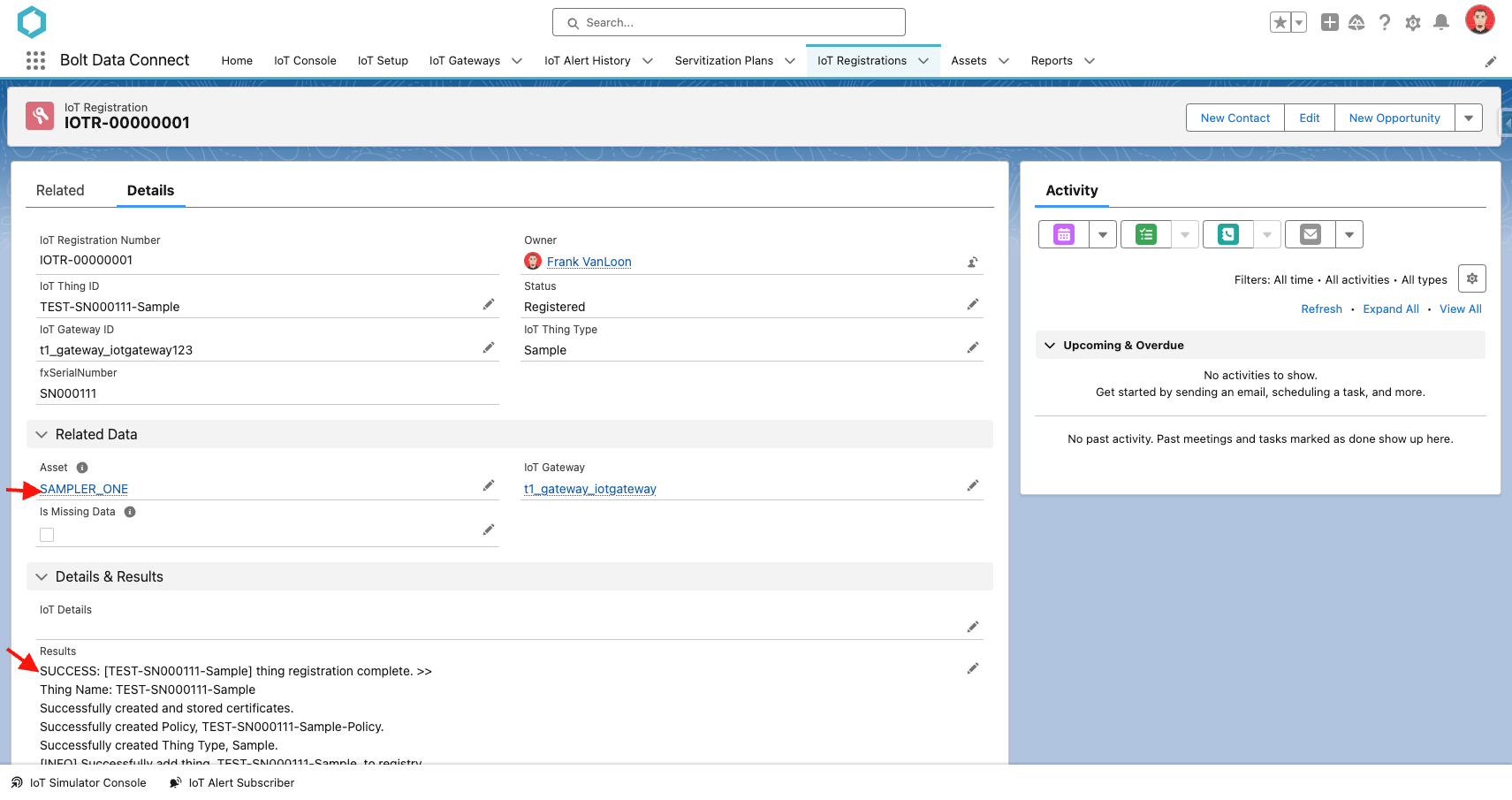
IoT Registration Objects