Alert Response
In the Thing Types you define the Digital Twins, Sensors, Calculated Fields and Alert Conditions for every type of “Thing” you need to connect. When those Alert Conditions fire the IoT Cloud sends an IoT Alert to Salesforce. Alert Response handling is a clicks-not-code solution to handling these IoT Alerts.
You can auto-create any response Object (Case, Work Order, Lead, etc.) in response to an IoT Alert, and customize how different Thing Types and/or Alert Types are handled. In addition, you can configure Thing (Asset) updates, auto-created related child records, auto-create IoT Data Snapshots and exit condition updates (e.g. Cancel Work Order, Close Case, etc).
Alert Response Setup
Each Alert Response definition can be broken into two sections:
- Conditions - What conditions cause this Alert Response to be executed?
- Actions - What actions need to be taken when entering / exiting this response?
When an IoT Alert is received, the system will find the first Alert Response with matching “Conditions” (sorted ascending by Priority) and execute it. It will also first execute the “Exit” condition of the previous Alert Response, if applicable.
Alert Response Conditions
- Priority
- Numeric sort order for Alert Responses, the first one which evaluates to true is selected
- Thing Types
- Which Thing Types are included in this Alert Response? Select * for all.
- Alert Types
- Which Alert Types are included in this Alert Response? Select * for all.
NOTE: This is different than the Alert Condition Name. Alert Type values can be reused if desired.
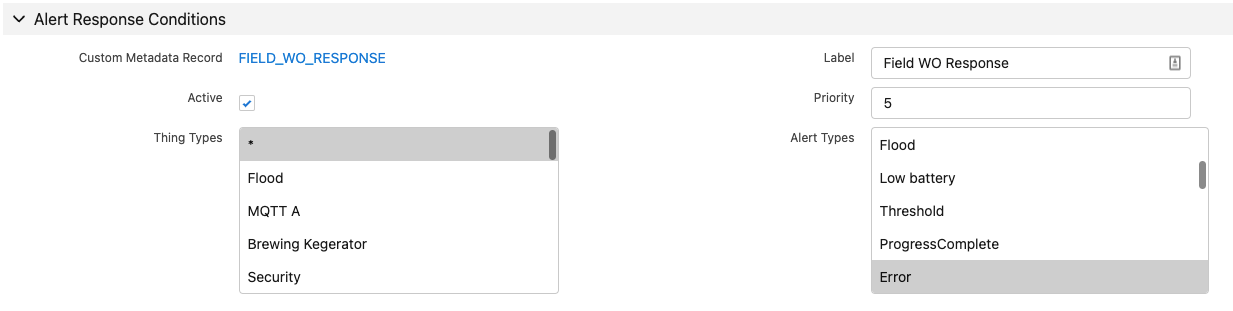
Alert Response Conditions
Alert Response Actions
NOTE: Before assigning the below mappings to an Alert Response, you have to create them using the Object Mappings tab first.
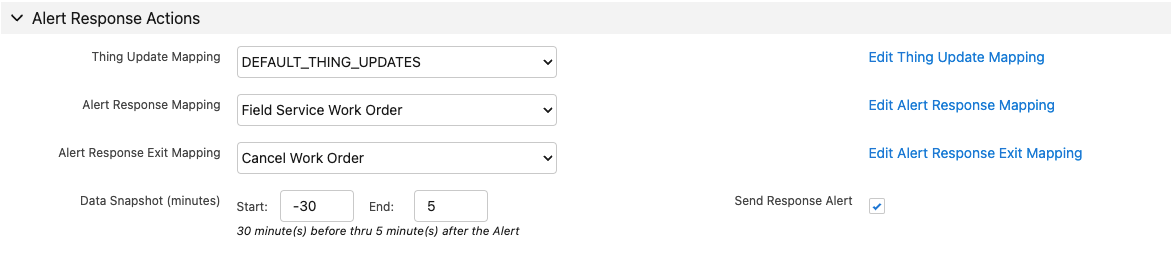
Alert Response Actions
- Thing Update Mapping
- Update the Thing record with data from the IoT Alert (e.g. Thing Status, Sensor Values, etc.) Use the “New Thing Update” button on the Object Mappings tab
- Alert Response Mapping
- Create a new record in response to the IoT Alert (e.g. Case, Work Order, Opportunity, etc.) Use the “New Response” button on the Object Mappings tab
- Alert Response Exit Mapping
- Update the previously created response record, when a different Alert Response is executed in response to the IoT Alert (e.g. Case, Work Order, Opportunity, etc.) Use the “New Response Exit” button on the Object Mappings tab
NOTE: The Target Object of the Alert Response Mapping and Alert Response Exit Mapping MUST match.
- Data Snapshot (minutes)
- Specify a start & end offset in minutes to create an IoT Data Snapshot attached to the response record.
NOTE: It’s typical to use a negative value in the start, indicating X minutes BEFORE the IoT Alert. If the end value is less than or equal to zero the Data Snapshot will be populated immediately. If it is positive, indicating X minutes AFTER the IoT Alert, the data will be populated using a scheduled background job after that time limit.
- Send Response Alert
- Should a separate “IoT Response Alert” be sent after processing the initial IoT Alert? This secondary alert will include all of the original values, plus the result values from the Alert Response. This is typically only needed if further automation will be triggered which needs the IoT data as well. See IoT Response Alert below.
Object Mappings
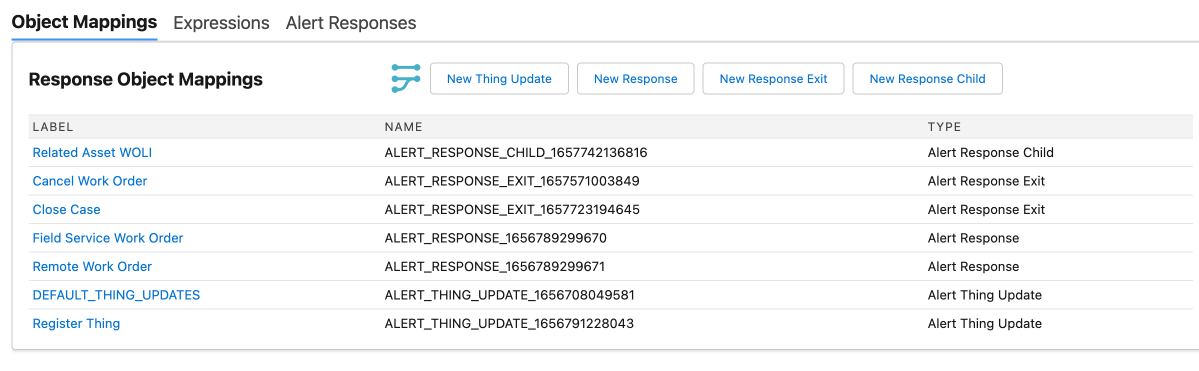
Alert Response Object Mappings
- New Thing Update
- Creates a new Object Mapping with Source Object of “IoT Alert” and Target Object of the configured “Thing” (e.g. Asset). This mapping will update the Thing record when executed.
- New Response
- Creates a new Object Mapping with Source Objects of “IoT Alert” & configured “Thing” Object (e.g. Asset) and Target Object of any Standard or Custom SObject available in the system. This mapping will create a new record when executed.
- New Response Exit
- Creates a new Object Mapping with Source Objects of “IoT Alert” & configured “Thing” Object (e.g. Asset) and Target Object of any Standard or Custom SObject available in the system. This mapping will update an existing record when executed, so it’s important that the Target Object should match the corresponding Alert Response Mapping.
- New Response Child
- Creates a new Object Mapping to create Child records (e.g. WOLI, Case Line, etc.) related to a Response Mapping. This mapping will have Source Objects of the “IoT Alert” & configured “Thing” Object, plus a Parent Object (e.g. Work Order, Case, etc) and a joined Child Object. (See the Alert Response Children section below)
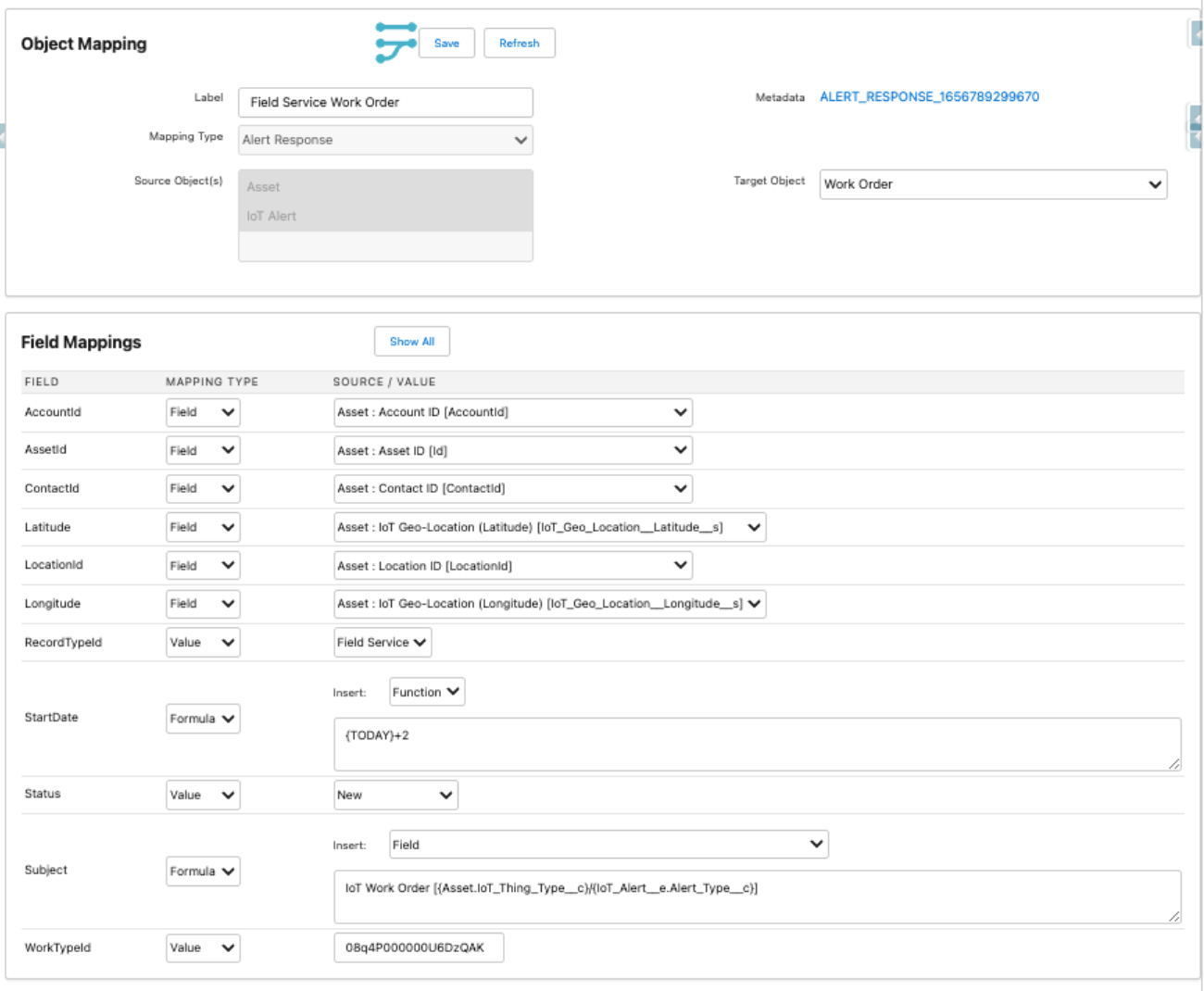
Object Mappings
- Source Object(s)
- All of the available Objects to map data from. All fields of these Objects will be available in the “Source / Value” columns with the “Mapping Type” of “Field”. These Source Objects are determined by the “Mapping Type” (see above)
- Target Object
- The Standard or Custom SObject to create/update with this Object Mapping
Field Mappings
- Show All / Hide Unmapped
- Toggle button to show / hide unmapped fields of the Target Object
Mapping Type
- None This field will not be mapped
- Field The source field will be copied into the target field
- IoT Field Select the IoT Data field (typically the “Thing Data” field) and specify a Sensor or Calculated Field name to copy into the target field
- Value The input value will be copied into the target field
- Formula Simple formula syntax allowing for concatenation of Fields and Text Values into the target field
Alert Response Children
In addition, you can also auto-create related child records (Work Order Lines, Service Appointments, Case Lines, etc) by joining data from the IoT Alert & “Thing” to related data using a Filter Expression, then applying a Response Child Mapping to create the child records.
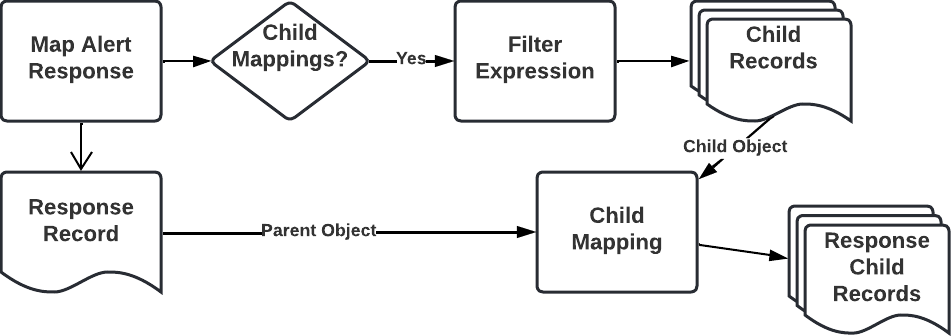
Alert Response Children Flow
For each Alert Response Child configured, the Filter Expression is applied first, finding 0 or more records. These records are then fed into the Child Mapping along with the previously created Response Object, creating new child records as seen above.

Alert Response Children
- Filter Expression
- Use data from the IoT Alert and “Thing” to filter records to “join” to. For example, you can find “Recommended Parts” records based on the Product & Problem Code combination as seen below.
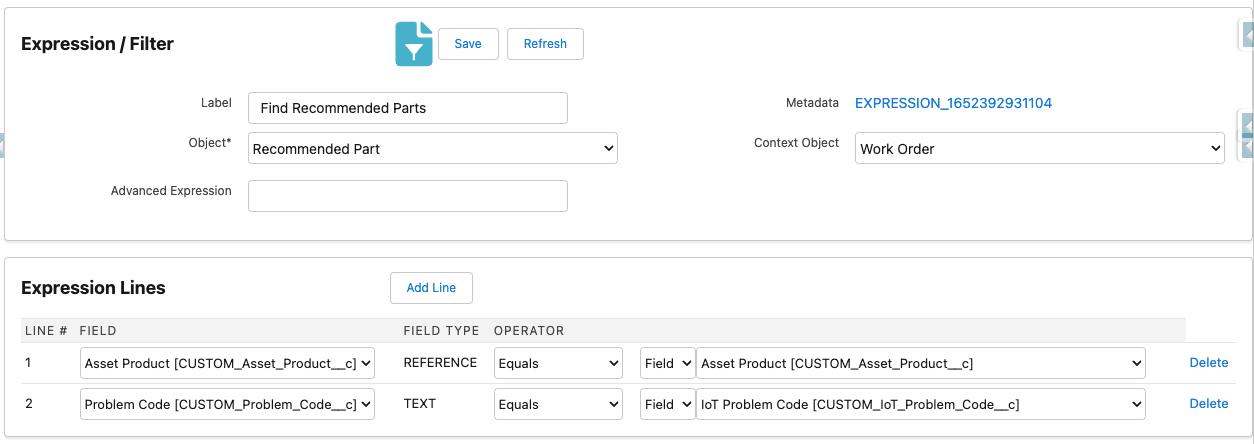
Expression (Filter Children)
- Child Mapping
- Map values from the IoT Alert & “Thing”, as well as the “Parent Object” (e.g. Work Order, Case) and the “Child Object” which was filtered above, into the Target Object.
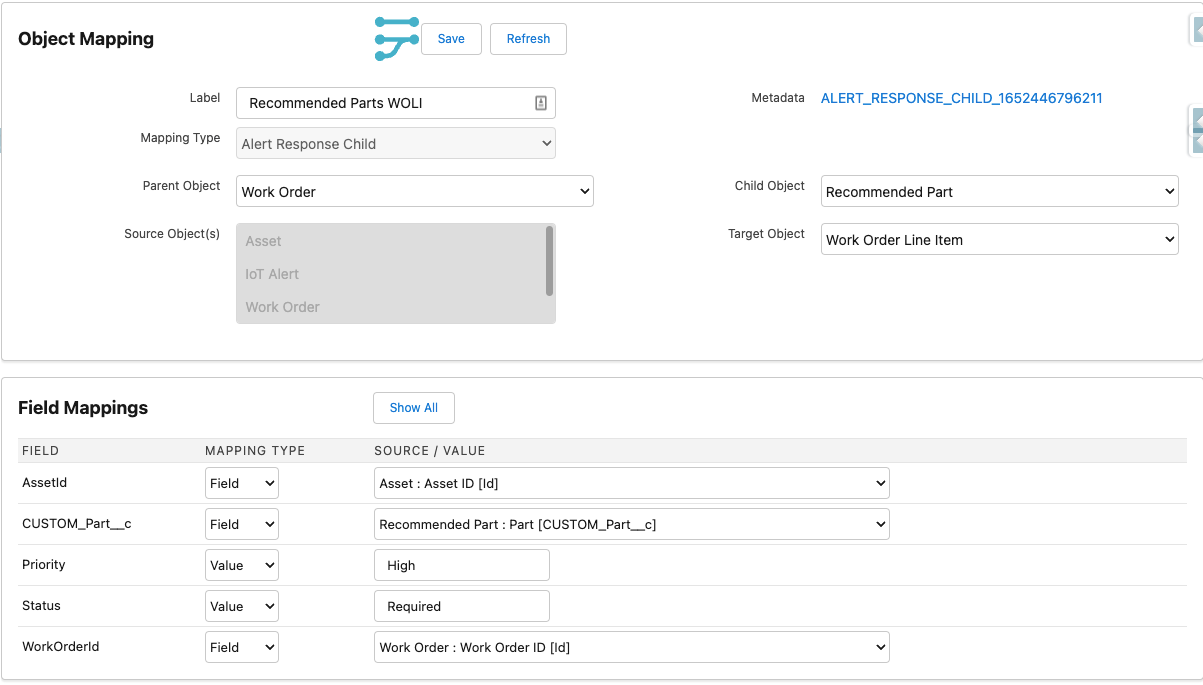
Object Mapping (Response Children)
NOTE: Make sure to map the “Parent Object” Id into the Target Object so that they are related
IoT Response Alert
When an Alert Response is executed, it can optionally send a new Platform Event with all of the original IoT Alert values, PLUS values indicating what Alert Response was executed as well as the resulting values and status of that Alert Response.
The resulting Platform Event will be of the type SPKI__IoT_Response_Alert__e and you can configure a Platform-Event Triggered Flow or Apex Trigger from this event.
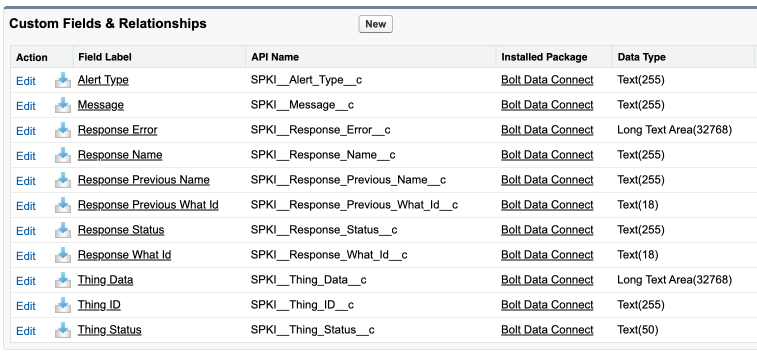
IoT Response Alert (Fields)