System Settings
Error Handling
From the Global Settings page, scroll to the section labeled “System Settings”, to control how the background jobs will handle any unexpected errors. There are currently two settings available:
- Log Thing Errors to Chatter
- Log Servitization Errors to Chatter

Error Handling
These settings, when enabled, will log any errors from background jobs to the Chatter Feed of the appropriate record. For Thing Errors they will be attached to the Asset, or your custom Thing Object if configured. For Servitization Errors they will be attached to the Servitization Plan.
Alternatively, if either these fields are NOT enabled the default behavior is to create “IoT Admin Log” records. This Custom Object can easily be accessed with Reports or as an Object Tab with List Views.
Chatter
If either of the above values are enabled, remember to also Enable the Feed Tracking of the corresponding Object (e.g. Servitization Plan, Asset, etc.) as seen in the following Setup screen.
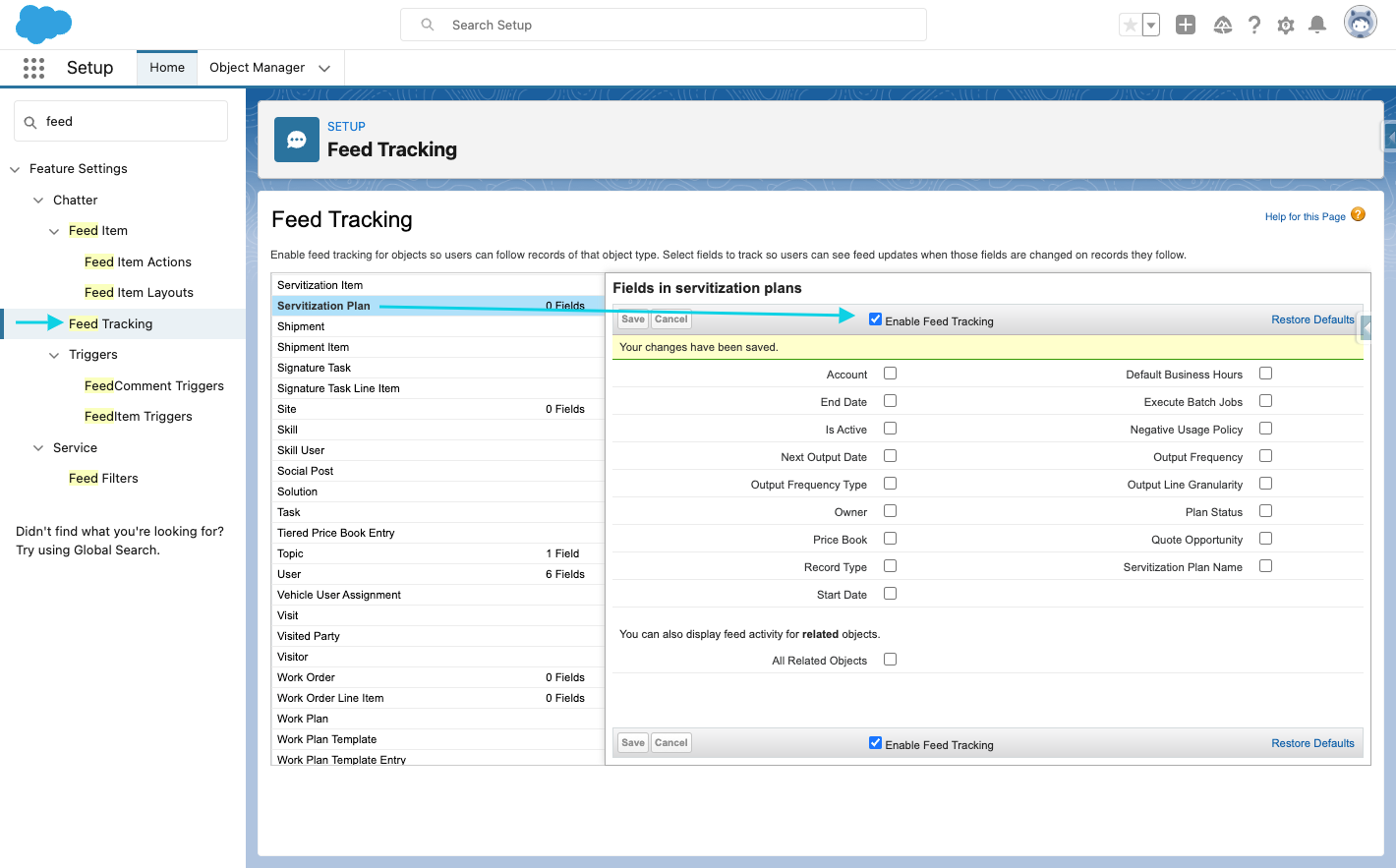
Feed Tracking
Platform Event Handling
From the Global Settings page, scroll to the section labeled “System Settings”, to control how the Platform Events received from the IoT Cloud will be handled.

System Settings
By enabling the field “Disable Platform Event Triggers”, the managed Apex Triggers will no longer process the Platform Events. Instead, we’ve provided the following Platform Event Triggered Flows we recommend you activate:
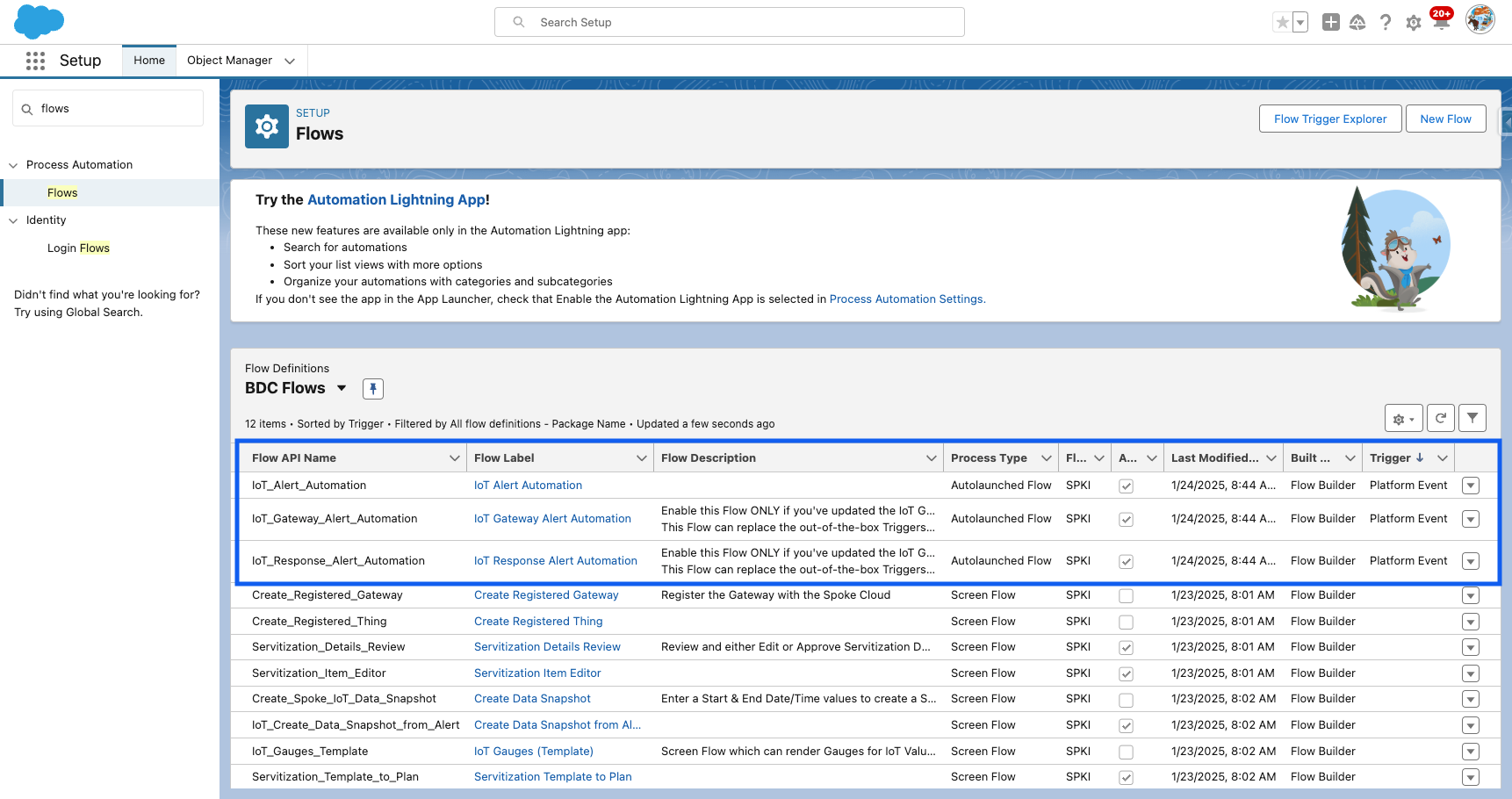
Platform Event Triggered Flows
IMPORTANT
The reason for choosing to activate the Flows instead of the Apex Triggers is to change the User that will run the automation including:
- IoT Alert History record creation
- IoT Alert Responses
- IoT Downtime record creation
The Apex Triggers are run as the “Automated Process” user whereas the Flows will run as the user configured in the Global Settings App-Connectivity section.