Visual Twins
Configure Visual Twin Images and Annotations.
Visual Twins represent an Image and Annotations for each Thing Type that together form a visual representation of a device with the Sensors, Calculated Fields and Alert Conditions overlayed on the image where they visually correlate.
Visual Twin Setup
- Select a Thing Type to setup/edit it’s Visual Twin. If this is a first time setup you will see a message asking you to drag-and-drop an image file onto the editor.
- Use the palette of drawing tools (Rectangles, Circles or Polygons) to draw the annotation areas. We recommend you use the selector tool to right-click and name these annotation areas so that the next steps are easier.
- Select all of the Fields for a specific area in the “Available Fields” section.
- Use the selector tool to right-click on the desired area and choose “Bind Values”. You will see these fields are now listed in the “Field Bindings” section for the desired area.
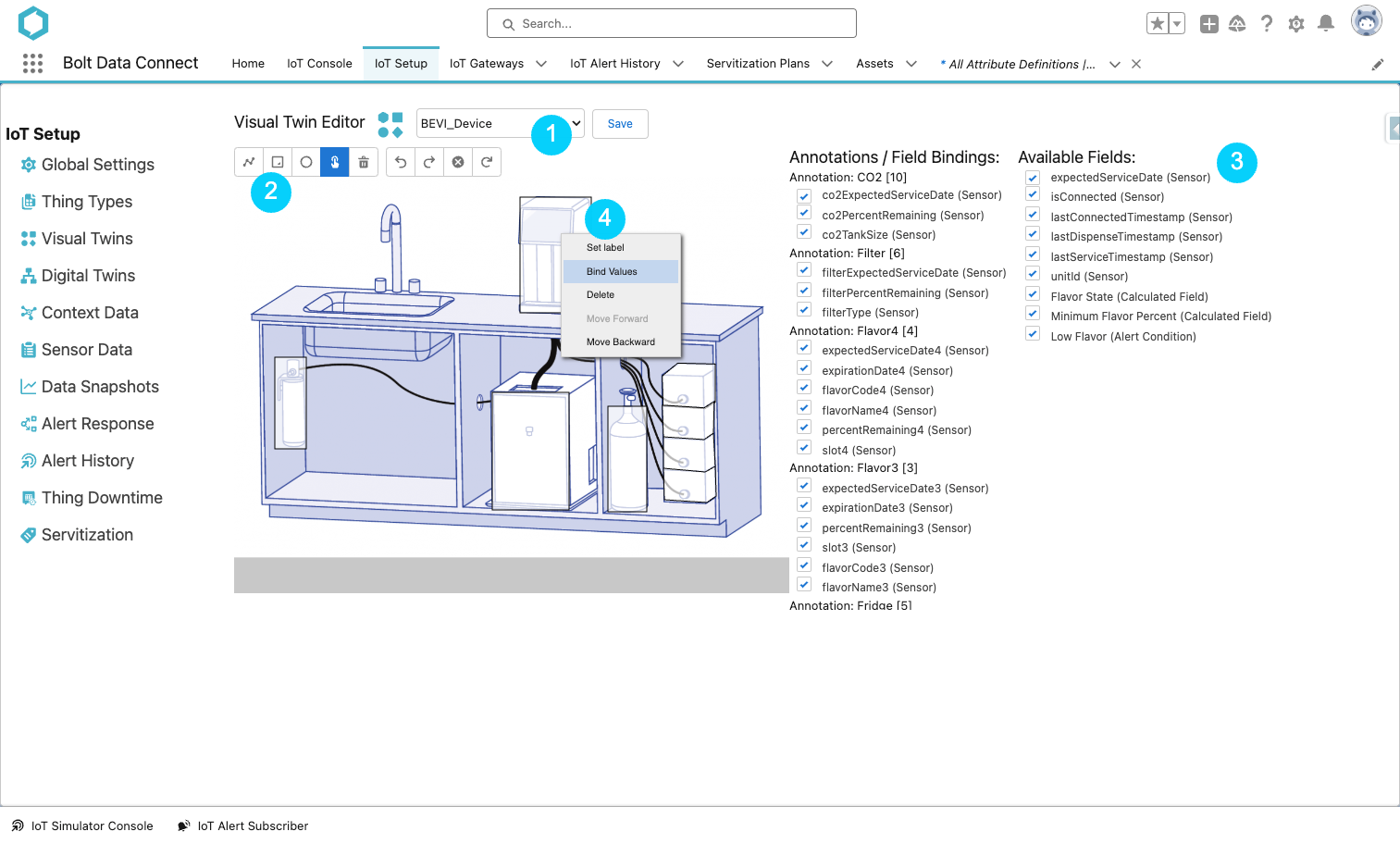
Visual Twin Editor
Note
To remove fields from an annotation area, simply unselect the fields and click the update button at the bottom of the “Field Bindings” section. You will see the fields are now returned to the “Available Fields” section.Last modified November 28, 2023: Winter24 Release Docs (f842a3e)