Troubleshooting
Tools Required
- Ethernet Cable
- Laptop with a web browser
Usage
- Connect the P1AM-100 to a power supply
- Connect an Ethernet cable from the P1AM-ETH to your local network
- The IoT Industrial Controller uses DHCP to reserve its IP Address. You’ll need to log into your local DHCP server and find this controller. The MAC Address should start with
60:52:D0. There currently is no fallback IP Address if no DHCP server is found. - Once you find the IP address address, open an internet browser and enter that IP Address into the address bar and hit enter.
- You should find yourself on a page like this:
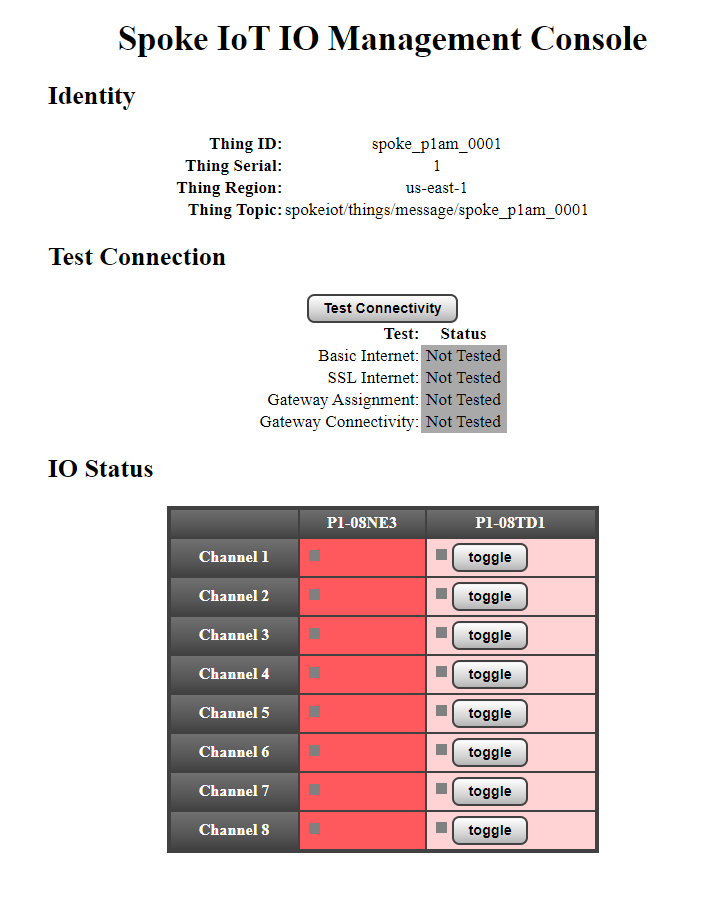
IoT IO Management Console
IoT IO Management Page
Identity
This section shows the identity flashed to the device. This is currently read-only.
- Thing ID: The External ID which the device connects to the IoT Infrastructure. Use this as the External ID for your Thing in Salesforce.
- Thing Serial: The serial number of the device (used in the MAC Address)
- Thing Region: The current region which the device uses (AWS specific)
- Thing Topic: The MQTT topic which this device publish IO updates to
Test Connection
This section provides connectivity tests to help troubleshoot network and configuration issues.
- Test Connectivity: hit this button to run the connectivity tests. You should see all the status change to
Testing
Note: While the tests are running, the device has to turn off this management server so just wait until the process completes and the status changes from
Testingto eitherPassedorFailed. It can take a few minutes for the process to complete.
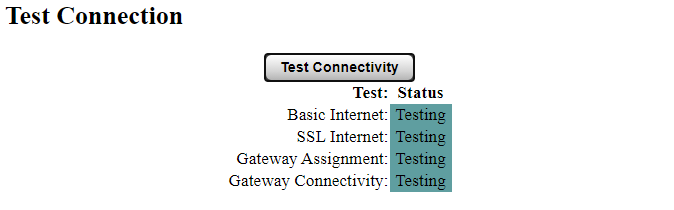
Testing in progress
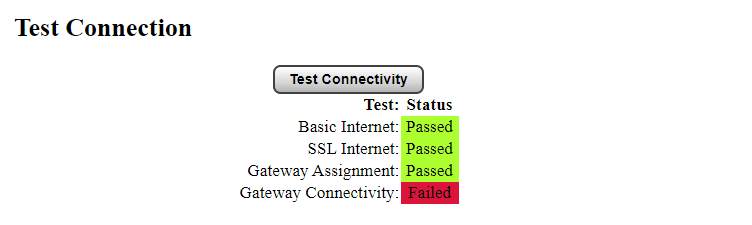
Testing complete (device has internet connectivity, and a Gateway assignment but can’t connect to the Gateway)
- Basic Internet: passes if the device can access
http://aws.amazon.com - SSL Internet: passes if the device can access
https://aws.amazon.com(Note: https) - Gateway Assignment: passes if the device has been assigned to a Gateway and the device was able to successfully query that assignment from the IoT infrastructure.
- Gateway Connectivity: passes if the device was able to connect to the assigned Gateway.
Note: The Gateway tries to self identify its own IP Address. If the Thing and Gateway are on separate networks, some extra Gateway configuration is required to provide an endpoint which the Thing can reach. Contact your support representative for more information if you’re having issues with Gateway connectivity.
IO Status
This section provides status of all the IO modules currently identified by the controller. Each module will report its current input status and allow you to manually override outputs for local troubleshooting.
Once the device returns to Online mode, it will retrieve the latest output configuration from its cloud state database and apply outputs accordingly.
- Module: each module will show up as a column in the IO Status table with all of its channels as rows.
- Channel: each channel will show up as a row for a given module. Output channels should have a user input which you can use to manually set outputs.